Showing posts with label laptop. Show all posts
Showing posts with label laptop. Show all posts
Monday, March 6, 2017
How To easily Wipe All Data Remotely From Lost Or Stolen Laptop
How To easily Wipe All Data Remotely From Lost Or Stolen Laptop
Today, we will discuss on the latest security steps to follow in order to wipe a lost laptop remotely. In this era of advanced technology, everybody is got personal devices like laptop, mobile and tablets which are probably the only place where one stores his or her personal data and media files. Each significant account details and documents are stored in such devices.
_________________________________________________________
Read more:
How to bypass android pattern lock without losing data
15 best android launchers 2016
Top 10 best android soccer games 2016
___________________________________________________________
Therefore, the question that comes to your mind is what happens when the laptop gets lost?
What if it falls into the wrong hands?
When such happens, there is a great amount of danger when it gets to your privacy and you must find a way to wipe the laptop remotely so that you can secure the data and other kind of personal details and accounts which can get exposed easily. So, go ahead and check the complete guide on how to wipe a laptop remotely.How To Wipe Windows Laptop remotely?

When such happens, there is a great amount of danger when it gets to your privacy and you must find a way to wipe the laptop remotely so that you can secure the data and other kind of personal details and accounts which can get exposed easily. So, go ahead and check the complete guide on how to wipe a laptop remotely.How To Wipe Windows Laptop remotely?
In this article, you will come to know the standard step by step procedure on how to wipe your lost or stolen laptop remotely from your device. This would immediately work when your laptop gets connected to the Internet. So, just check out the below given steps to have a clear view on how to wipe a laptop data remotely.
Steps To Wipe A Laptop Data Remotely
1. First visit this website: theLaptopLock.com & Sign up with a email and password.
2. After login in, you need to add your computer name so your computer will get added in the account

3. First column is of Computer ID. Note it down, and download this software in your computer: thelaptoplock software
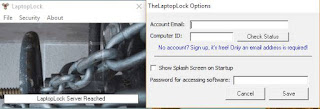
4. After installing the LaptopLock software in your computer, enter your email, computer id and password and click on save button
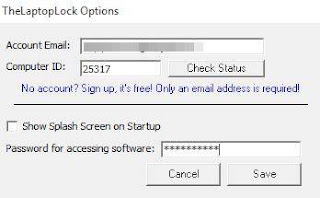
5. Now go to Security -> Manage Security Plans in the given dialogue box
6. You need to select file and folder that you wants to delete or wipe when your laptop is missing or stolen. It will also encrypt that files and folders at that same time.
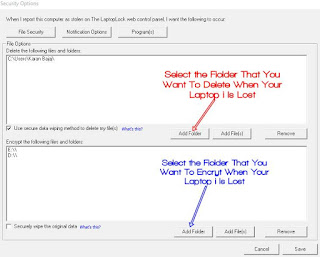
7. Now whenever your laptop gets stolen, you just need to login that website and just have to mark your laptop is missing.
8. Thats it. The selected folder will get deleted and it will be encrypted remotely.
The guide above is the full guide on how to easily wipe a laptop data remotely when it gets stolen. The above given steps would easily assist in wiping out the significant details which you don’t want unauthorized and wrong individuals to have access to, which could ultimately cost you a lot. So, go ahead and implement the remote wipe laptop method of securing the privacy. Share it with others and ensure that there is abundance of means and ways of protecting and securing data.
Available link for download

Thursday, March 2, 2017
HOW TO DOWNLOAD WHATSAPP ON COMPUTER LAPTOP – WINDOWS 7 8 10 MAC – BLUESTACKS METHOD
HOW TO DOWNLOAD WHATSAPP ON COMPUTER LAPTOP – WINDOWS 7 8 10 MAC – BLUESTACKS METHOD
By Olatech at Gurufound
In this post, Ill discuss the 4th method - Installing WhatsApp on your Computer/Laptop of Windows 7/8/10 or Mac by using Bluestacks Software!
Many people have been searching about how to download WhatsApp on Computer/Laptopand finally a simple procedure is written below for installing Whatsapp on your Windows Os and Mac Os of your Pc/Laptop.
WhatsApp is the most famous mobile messenger app of having amazing features like text messages, voice messages, images, videos, smileys, file sharings etc.
Earlier, WhatsApp was officially released for only Smartphones of Android, BlackBerry OS, Apple iOS, Symbian, Windows Phone etc but not for Computer/Laptop. But later in2015, for Computer/Laptop, WhatsApp has released a feature called ‘WhatsApp Web‘ which we use on browser and later on May 11, 2016, for same Computer/Laptop, Whatsapp has officially released the desktop app (messenger)!
So now we have total 4 methods to use Whatsapp,
1
Mobile Phone
Using Whatsapp on mobile phone [normal method]
2
Web Browser
Using Whatsapp on computer/laptop web browser [Google chrome] - Click Here
3
Official Desktop Messenger
Using Whatsapp on computer/laptop by official desktop app - Click Here
4
Bluestacks (3rd party software)
Using Whatsapp on computer/laptop by using a software - Bluestacks [the present post!]
Now you might get confused about which method should I follow as there are total 3 methods for using Whatsapp on computer/laptop! 
Dont worry! Im simplifying all the differences between the 3 methods, and now you will get an idea about which one you should use and which is best one for you!
- WEB BROWSER
- DESKTOP MESSENGER APP
- BLUESTACKS SOFTWARE
- Here we will use our existing whatsapp account on desktop browsers like Google chrome.
- In order to use this web browser feature, you must need the cell phone on which you are using your existing whatsapp account!
- Also, you must need internet connection in your phone in order to use the WhatsappWeb feature, bcoz here you need to scan a code from your cell to open WhatsappWeb account!
- Check the post here, I wrote complete info - HOW TO USE WHATSAPP ON YOUR PC/LAPTOP/TABLET – WEB BROWSER
In this post, Ill discuss the 4th method - Installing WhatsApp on your Computer/Laptop of Windows 7/8/10 or Mac by using Bluestacks Software!
Ok, in general, there are many softwares on the internet which will help us to run android apps on our Pc/Laptop, but the best one is Bluestacks. So in this post we are using Bluestacks software for installing WhatsApp on Pc/Laptop.
Note: Bluestacks is only supported on Pc/Laptop having graphic memory or graphic card. If your PC dont have a graphic card, then dont worry, Im giving an alternative link to download.
Note: Bluestacks is only supported on Pc/Laptop having graphic memory or graphic card. If your PC dont have a graphic card, then dont worry, Im giving an alternative link to download.


Have Fun – Chatting – Voice messages and much more on your Pc/laptop`s Whatsapp.
Also, you can check the 2nd method, "WhatsAppWeb" bygoing here - HOW TO USE WHATSAPP ON YOUR PC/LAPTOP/TABLET – WEB BROWSER
You can check the 3rd method, "WhatsApp Desktop Messenger App" by going here - Now Download WhatsApp Desktop Messenger App on Computer/Laptop!
You can check the 3rd method, "WhatsApp Desktop Messenger App" by going here - Now Download WhatsApp Desktop Messenger App on Computer/Laptop!
Available link for download
Read more »
Friday, February 24, 2017
6 Things you need when you first buy a laptop
6 Things you need when you first buy a laptop
Make your computer last with gear guaranteed to keep it safe
¨
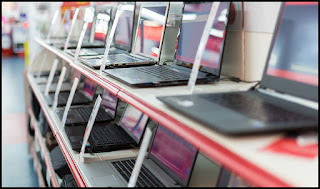
On the off chance that you just got your first portable PC, or possibly redesigning your old one, youll require more than only a case to keep it ensured.
Tablets arent modest, yet theyre a speculation since theyre more than only a PC. Theyre your on-interest motion picture theater, computerized photograph collection and the attendant of all your most loved playlists. Cloud or no cloud, supplanting one pulls on more than simply your wallet.
Since our PCs do basically everything for us, its nothing unexpected there are a lot of items out there to keep gadgets running easily. In any case, what do you really require? Utilize this rundown as a kind of perspective and your new tablet will be fit as a fiddle for whatever length of time that you have it.
1) Travel with your tech gear and never fear harm with a tough sleeve.
Shield your PC from drops and dings with a shockproof sleeve like this exceedingly appraised one by Evecase.
2) Protect your hard drive from overheating with a tablet cooling fan.
Why do accidents and stops dependably appear to happen even from a pessimistic standpoint conceivable time? Diminish potential debacles by decreasing the temperature of your portable PC.
3) Steer clear from scratches with a screen defender.
This hostile to glare, against scratch and against unique mark screen defender by CooSkin permits you to effectively see your screen regardless of the point of the sun. It likewise accompanies a six-month cash back guarantee, in the event that you alter your opinion.
4) Protect your gadget from awful volts with a surge defender.
Singed hardware are futile (and dont taste great either). The Belkin six-outlet surge defender has 200 joules of wellbeing to ensure your gadgets arent cooked amid the following tempest. Its a straightforward thing that will complete the employment securely.
5) Save yourself the anxiety of broken gadgets with a hard cover case.
Better to be as careful as possible, correct? Try not to fuss about scratches, in light of the fact that the Mosiso plastic shell case was outlined because of that. Presently you can securely carry your PC with you wherever you go.
6) Move faster with a remote mouse.
This current ones not a security need, but rather your issue free wrists will thank you later. Basically connect to a remote mouse, similar to this one from Logitech, and peruse the web or
play all your most loved computer games without hardly lifting a finger
TAGS
macbook pro, macbook air, new macbook, laptop, computer, 2015, which mac to buy 2015, notebook, personal computer (video game version), ninite, ccleaner, pc decrapifier, bloatware, new laptop, memory, processers, laptops, laptop_computers, computers_x_tablets, thingstoknow, deals, mobilestudio, apple laptop, mac, macbook comparison, macbook vs macbook pro, macbook vs air, macbook pro vs air, 2015 macbook, which macbook is best, which macbook to buy, mac buyers guide, new computer, which should i buy in 2015, which mac to buy, which mac should i buy, lightsaber, connected, futuristic, future
Available link for download
Thursday, January 26, 2017
4 must do things before buying a laptop or PC
4 must do things before buying a laptop or PC
Getting a Laptop have always been one of my life dreams till I got one 3yrs ago, there are some certain technique I adopted that made me get a better one for my self not minding that I dont have any technical knowledge of laptop or pc but unmade a good choice for my self and I can proudly say "I dont regret".

Read what to do before getting your self a laptop below.

1. Make some Web research about the product; thanks to the giant web search engines "Google", they have made it so possible that you will almost get the detail of what ever you at e searching for that have been in existence.

2. Check the Monitor; Now you have know every details of the laptop, I would like you to observe the inch of the laptop, check if it will fit to the work you want to use it for. Dont forget to also check on the graphic display of the system, this is one of the most import thing today check for a gaming laptop, as every display of the game is based on the graphic display quality.

3. Battery Life; this is the most important of all, check how log does the battery last before it goes down, the longer the Battery last the much you enjoy your Laptop, play game surf the web and read some PDF format books.

4. Finance; this is the first thing that is supposed to run to your mind before going for a laptop, it is good to know how much you have so that you dont make a budget that you cant solve. Now is not when without 100.000 thousand naira you wont get a laptop with just 50.000 thousand naira you can get your self a more than basic laptop that will serve your needs.
Now work straight to the market get your self a better laptop.
Read what to do before getting your self a laptop below.
1. Make some Web research about the product; thanks to the giant web search engines "Google", they have made it so possible that you will almost get the detail of what ever you at e searching for that have been in existence.
2. Check the Monitor; Now you have know every details of the laptop, I would like you to observe the inch of the laptop, check if it will fit to the work you want to use it for. Dont forget to also check on the graphic display of the system, this is one of the most import thing today check for a gaming laptop, as every display of the game is based on the graphic display quality.
3. Battery Life; this is the most important of all, check how log does the battery last before it goes down, the longer the Battery last the much you enjoy your Laptop, play game surf the web and read some PDF format books.
4. Finance; this is the first thing that is supposed to run to your mind before going for a laptop, it is good to know how much you have so that you dont make a budget that you cant solve. Now is not when without 100.000 thousand naira you wont get a laptop with just 50.000 thousand naira you can get your self a more than basic laptop that will serve your needs.
Now work straight to the market get your self a better laptop.
posted from Bloggeroid
Available link for download
Friday, January 20, 2017
How To Browse On The PC Or Laptop With Modem And Sim Card
How To Browse On The PC Or Laptop With Modem And Sim Card
This First Appear On Gurufound.
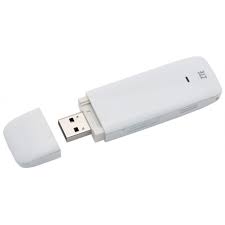

How To Browse On The PC Or Laptop With Modem And Sim Card
Hi Guys , Today I Want To Tell You How To Browse Through The Computer ,
To Browse With The Computer Is Simple
To browse with Computer You Will need somethings Like
· A Modem
· Sim Card With Data
So After You Have Gotten The Modem And The Sim Card , You Will Insert The Sim Card inside The Modem And Then Insert On Your PC or Laptop
Yo Must Have Install The Modem Onto Your Computer System Before So After it Will Bring Some Thing like This below
Modem
Sim Card
So You Will Click Connet After You Clicked Connect You Will See It Will Bring Connected So Enjoy Browsing On PC Or Laptop
Pls Share This To Friends, Sharing Is Caring
Available link for download
Subscribe to:
Posts (Atom)